 Alex Morgan
Drag from the middle, not the bottom
This is the single most useful mobile tip on the site and almost nobody works it out unprompted.
Drag control maps your finger's position onto the paddle's position, so your instinct is to put your thumb near the paddle at the bottom of the table. That is exactly where your hand then covers the part of the table you most need to see.
Dragging from the middle of the table produces identical paddle movement — the mapping is horizontal only — while leaving the near half visible. It feels odd for about thirty seconds and then feels obviously correct.
Choose the scheme that suits the game
Both drag and the button pad are always available and you can switch between them mid-rally without any mode change.
Drag is better for positional games, where continuous control matters and you are chasing a ball across the table. Buttons are better for timing games, where a single large target is easier to hit precisely than a gesture is.
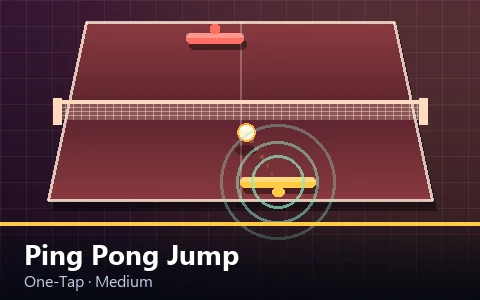
One-Tap Ping Pong is the clearest case: the single large button under the table is much more reliable than tapping the playfield, because there is no ambiguity about whether the tap registered.
Watch the shadow more, not less
Depth information in a top-down view comes from the gap between the ball and its shadow. On a smaller screen that gap is physically smaller, which makes it harder to read.
The correct response is to look at it deliberately rather than to give up on it. The shadow's path is where the ball will land, and on a phone that is the only depth cue available.
The dashed landing marker helps here too. It appears once the ball is descending and is drawn from the live physics, so it is accurate rather than approximate.
Pick the right games
All thirty work on a phone. They do not all suit one equally, and it is worth being specific rather than pretending otherwise.
| Very good on a phone | Better on a tablet | Better with a keyboard |
|---|---|---|
| One-Tap Ping Pong | Paddle Attack in 2P | Corner Smash |
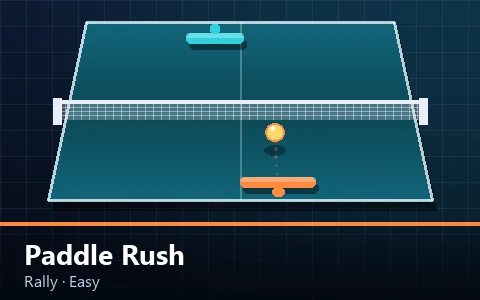
| Paddle Rush | Ping Pong Arcade Ultimate | Spin Master |
| Reflex Rally | Falling Ball Frenzy | Speed Serve |
| Rally Master | Pixel Ping Pong in 2P | Paddle Cannon |
The pattern is that games needing fine placement are easier with keys, because a keyboard gives discrete repeatable input. Games needing reaction or timing are equally good or better on touch, because a thumb on glass is more direct than a key.
Orientation
Portrait is the default and works well, because a table tennis table's proportions match a phone's. The whole playfield is visible with the HUD above and the controls below.
Landscape adapts: the header stops being sticky, the stage caps its height at seventy-eight per cent of the viewport, and the descriptive copy above the game is hidden so the playfield takes the space.
For the long stage games — Ultimate Ping Pong Challenge, Ping Pong Arcade Ultimate — landscape is worth using. For everything else portrait is generally more comfortable.
Performance
A game page has no images, no audio files, no fonts and no third-party scripts, so it loads in about the time it takes to read the title even on a mobile connection.
During play, the simulation runs at a fixed 120 steps per second and renders once per frame, so a device managing thirty frames a second gets identical physics — the game looks choppier but is not harder.
If a game does feel sluggish, closing other tabs genuinely helps. A browser game shares the device with everything else running, and that is the most common cause of a poor frame rate rather than the game itself.
Battery and background behaviour
The loop stops entirely when the tab is hidden or the screen locks, and the game pauses itself with a visible pause screen.
That means a game left open in a background tab uses no measurable battery, and nothing is lost when you come back — no run continues without you and no burst of catch-up simulation happens on return.
There is no offline mode. A previously loaded page may be served from the browser's ordinary cache, but that is the browser's behaviour rather than something this site provides.
Key takeaways
- Drag from the middle of the table so your hand stops covering the near half.
- Use buttons for timing games and drag for positional ones; both are always available.
- The ball-to-shadow gap is smaller on a phone, so read it deliberately rather than abandoning it.
- Games needing fine placement are easier with keys; reaction and timing games are equal or better on touch.
- The loop stops when the tab is hidden, so a backgrounded game uses no measurable battery.
Frequently asked questions
Where should I put my thumb?
In the middle of the table rather than at the bottom. The mapping is horizontal, so paddle movement is identical and your hand stops covering the part you need to see.
Are the games harder on a phone?
Different rather than harder. Drag is faster for large corrections and worse for fine ones, and depth is harder to read on a smaller screen. Timing games are arguably easier on touch.
Should I play in portrait or landscape?
Portrait for most games, since the table's proportions match a phone's. Landscape is worth using for the long stage games where the extra width helps.
Do the games work offline?
No. There is no service worker. A previously loaded page may come from the browser's cache, but that is the browser's own behaviour.